1. Home
  2. Designer Guide
  3. Introduction to the Studio

Introduction to the Studio

The creation of applications will change with APP Packaging that will ship with release 7 planned for 2023. Here, we will use the term Process instead of APP because previous versions of WEHOOP were mainly based on the creation and implementation of processes (workflow) within companies.

What is the Studio?

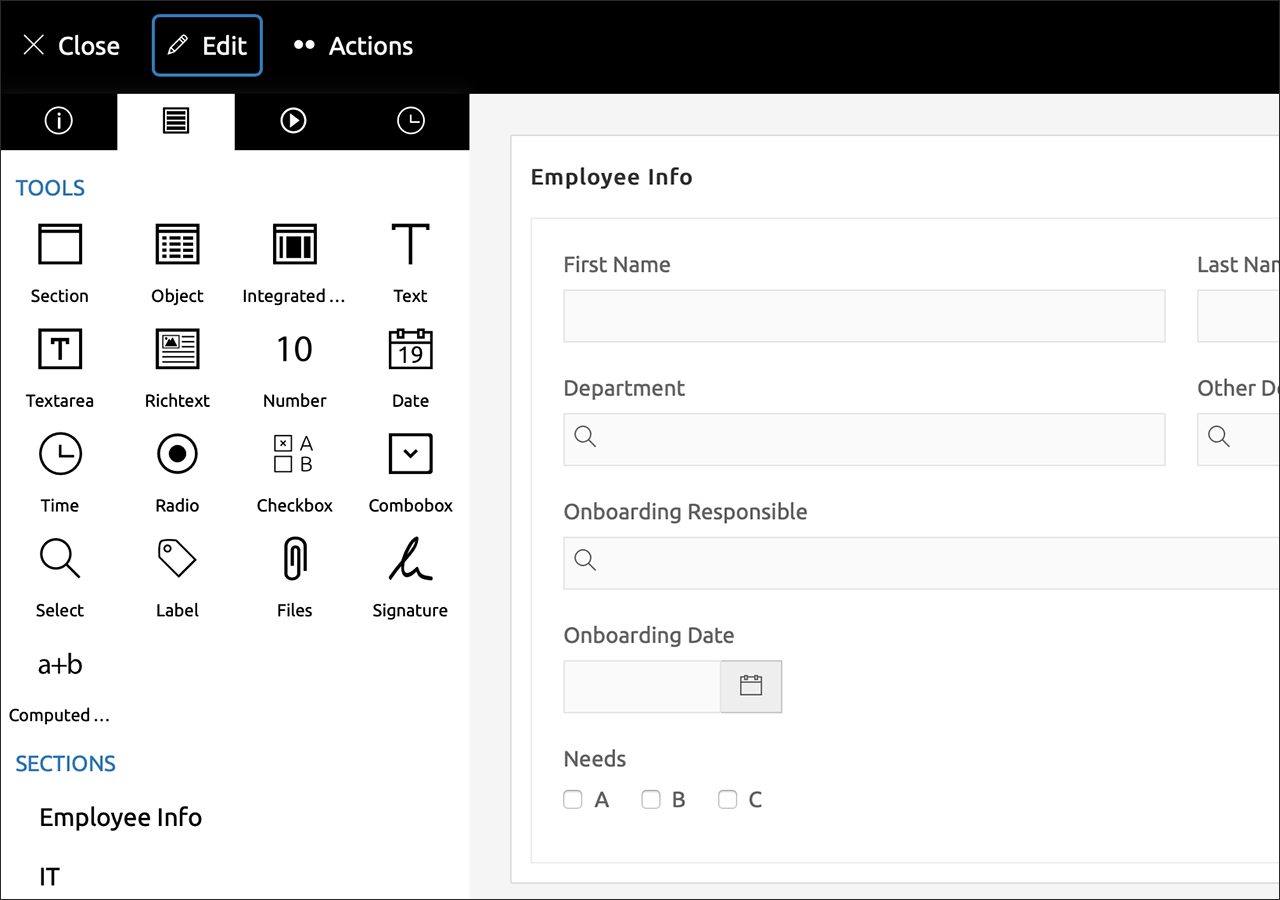
The WEHOOP Studio allows the designer (people with access to creating applications, processes and other elements) to design, test, deploy and review applications on the WEHOOP platform.
WEHOOP Studio Teaser

Development Lifecycle

The WEHOOP application development lifecycle consists of a series of steps to develop, test, deploy and enhance a specific application. The life cycle defines a methodology to improve the quality of an application and the overall development process.

This lifecycle start with the client requirements.
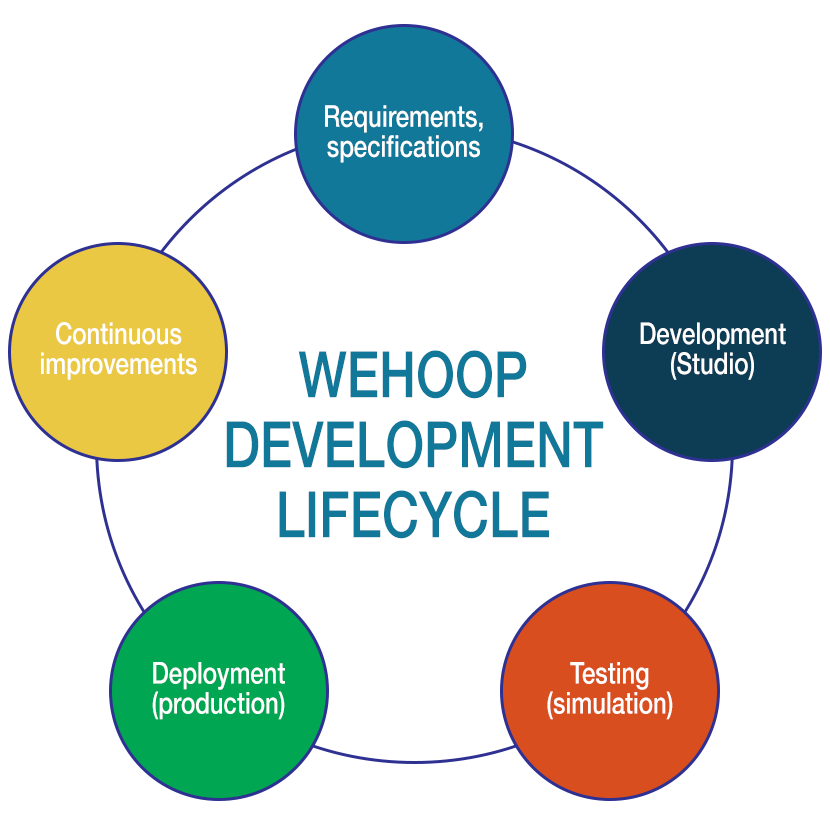
WEHOOP Development Lifecycle chart

1. Customer’s need

The majority of applications begin with the need to set up a process (workflow) to solve an operational or management problem. At this stage we will identify the requirements, the people involved (actors), the data to be managed, the current process (if any), the reports or statistics (outputs) requested.

All this information will allow us to determine the specifications of our application.

2. Development

The development of an application is done quickly. It will consist of a process and its form, and possibly several other components available on the platform such as:

Workspace, List of values, Graphs and statistics, Reports, Views, etc.
WEHOOP Designer 301

3. Testing

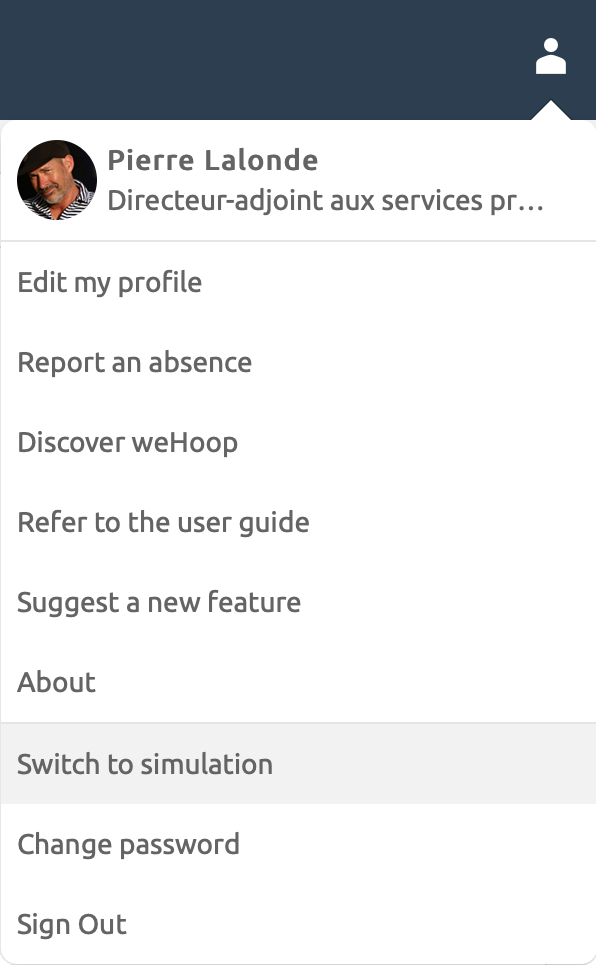
The tests are carried out throughout the design. The designer will be able to identify a simulation team for each of the processes he designs or improves. Members of this team will have the opportunity to switch to the Simulation environment. To begin your tests, select Switch to simulation in the menu below.

Once in the simulation environment, click on the + Simulate button in the action bar at the top of the window and select the process to test.

The simulation environment differs from the production one mainly by the black color used as background of the action bar as well as by the + Simulate button that replace the + Start button.

Switch to Simulation in WEHOOP

4. Deployment (activation)

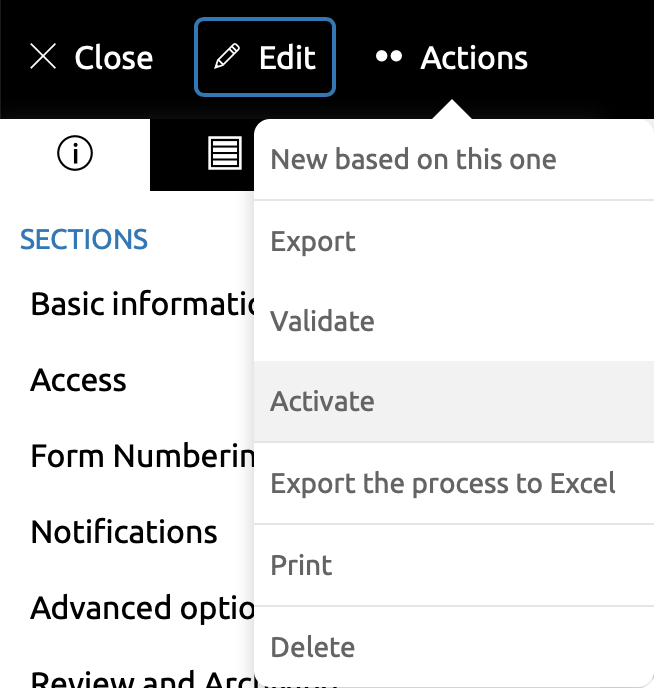
When it’s time to make your process available, the designer selects the Activate action in the menu at the top of the window. WEHOOP will validate your process and if it is a new process, it will offer you the ability to automatically notify these users of its availability. In the case where the validation would indicate errors, this one will be displayed to you.Note that you can use the Validate action available in the menu at the top of the window, to check if your process is ready to be activated.

WEHOOP activer

5. Continuous improvement (revision)

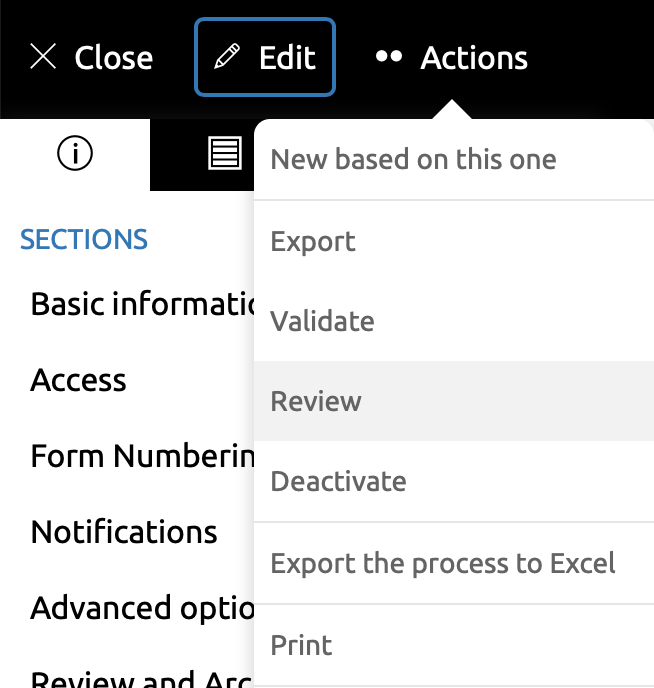
Once the process is activated, it is possible to make changes to meet new needs or improve performance. To do this, open the process from the Studio and select Review from the action menu at the top of the window. A dialogue will ask you to indicate the changes you wish to make. This information will be kept in the process history.
WEHOOP Reviewing