
Terms and definitions
Activity
It can be manual or automated. Manual activity allows you to enter information on the form, make a decision or indicate completed tasks. The automated activity allows you to update data, automatically start a process, send notifications …
Group activity
This type of activity allows multiple users to refresh the data on the form until a condition is met that allows the process to continue. When encountered, the “Save” button will be replaced by “Send” and the activity manager will be notified that they can continue with the process.
Note that users will be able to take turns editing the document.
Department
A group of people forming part of an organization plan making it possible to direct the processes according to the hierarchical level of the user as well as his location in the organization plan.
Form
WEHOOP offers dynamic forms, i.e. they adapt to the user, the device and the context. WEHOOP forms replace your paper or electronic forms circulating in your organization.
Initiator
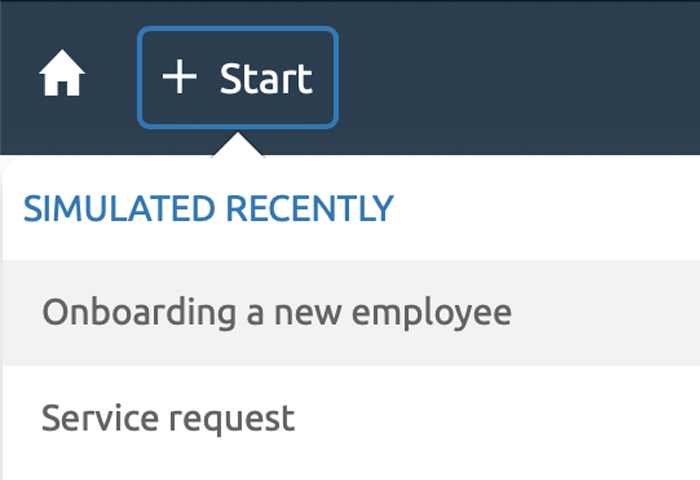
This is the person who starts a process. To do this, click on the + Start button at the top of the screen. Then, complete the requested information and press the Send button.
 The information will be automatically transmitted to the person responsible for the next activity in the process.
Instruction
Additional information intended to help the user perform the activity assigned to him. These instructions can be given to each of the activities of a process.
Notification
A notification is an email sent to people who must take action in a process or simply a notice containing specific information related to the form.
Process
Also called a workflow, a process is a series of logically related activities. Once completed, they make it possible to deliver the requested service. For example, the Onboarding new employee.
Simulation team
Persons authorized to carry out the tests on all the activities of the process by simulating the person responsible for these. These people will be able, among other things, to validate the accuracy of the process and the content of the notifications to be sent.
Widget
Widgets are visual blocks presenting information in various forms: list, table, graphs or indicators. Several widgets can appear in the same space.
Workspace
A workspace is like a home page. It brings together users who have the same responsibilities or needs by offering them a page, navigation and context-specific information. It offers its own navigation as well as widgets presenting information in various forms. Each workspace is secure so that it is available only to those concerned.
Status of an activity or a process
A status can apply to the process (Draft, Referral Error, Completed, Canceled) or one of its activities (Pending, Supported, Paused, and Overdue).
Canceled
Process canceled for various reasons.
Completed
Process completed.
Draft
Process that the user has started and saved (Save action). The user will find them using the list of started processes. He can submit them using the Submit action.
Every month, if a user has started processes and they have been in “Draft” status for more than 30 days, they will be notified by email. He can then submit or cancel them.
Late
Activity whose processing time has been reached or exceeded. This process will be identified by a red dial pictogram in the various menus.
Paused
Process whose completion date has been postponed automatically or by the activity manager.
Pending
Activity waiting to be processed or a process in which certain activities are still running simultaneously, or a process waiting for another process to be completed.
Rooting error
Process in which the referral to the next activity or the identification of the persons responsible for it cannot be carried out automatically. The person in charge of the process will be notified and can correct the situation.
Supported
Activity supported by the person responsible for carrying it out.
Available actions
Depending on the status of the process, you will be offered a series of actions. They will be grouped at the top of the form in what is called an action bar. In general, WEHOOP will display only two (2) actions, either the one for Close or Cancel as well as the one for Take or Send .
Cancel
Undoes any changes made to the form data since the last save.
Cancel this process
When canceling a process, you must specify the reason. This will be communicated automatically to the people involved in the different activities of the process if necessary.
Close
Close the current window and return to the previous window.
Postpone
You can postpone the completion of an activity to a later date. You must specify the date and the reason for the postponement. This information will be communicated to the initiator of the process. This action will automatically appear in the history.
Save
Saves the form data in its current state. If it is a newly started process, you can find it in the My Processes menu & gt; Started.
Send
This action validates the integrity of the form’s data, indicates erroneous data if necessary, otherwise sends the form to the next activity in the process. Those responsible for this next activity will be notified by notification.
Share
As soon as you have access to a process, you have the possibility to share its content with colleagues. This action will automatically appear in the history. How to do it?
Start a process from it
It is as if you are cloning this process. The information previously entered during the first activity of this process will be automatically copied into the new process. All you have to do is change the information you want. How to do it?
Take
Indicates that you are taking charge of the activity assigned to you in order to complete it. Then you will have to click on the Send action to complete everything.